Chapter 4.1.3 OpenLDAP Windows
4.1.1 FreeBSD Install
4.1.2 Fedora Core Install
4.1.3 Windows Install
4.1.3 Windows Installation
If you want to deploy an Open Source LDAPv3 compliant server in Windows (XP, Windows 7, 10 or for the unfortunate among us, even Windows Vista) you have three choices:
OpenLDAP under cygwin.
The cygwin installer has done a great job in making the installation a long-winded but very simple process (it can take upwards of 30+ mins to get everything installed) and they have done a terrific job of hiding OpenLDAP (it's under the Libs category in the installer). The major downside is that the OpenLDAP version may not be updated regularly (though to be scrupulous package updates are pretty regular). If you are going to do development, or run other *nix packages under Windows this is the obvious choice.
ApacheDS. Runs under Java and includes a great LDAP Client/Development system called Apache Directory Studio. Superb tool as a client to any system including OpenLDAP. Perhaps a tad complicated to install since it's embedded into the Eclipse development environment (which always likes to complicate things) but well worth the effort.
If you want a simple, single click installation of the current version of OpenLDAP on Windows then you can do no better than OpenLDAP for Windows. It is updated periodically (OpenLDAP 2.4.44 in November, 2016). It optionally installs various backends including DB (OpenLDAPs database bdb or database hdb), OpenSSL (provides OpenLDAP TLS support) and even Cyrus SASL (provides Kerberos support). OpenLDAP does not run as a Windows task but rather runs inside a dos box.
Installation of OpenLDAP for Windows
When we recently (November 2016) installed this software we found that the installation process had changed radically from our previous install (OpenLDAP 2.4.35). Both 32 and 64 bit versions are now provided and the installation process provides many (too many?) options. The software may be obtained here and the installation instructions are here. We installed the 64-bit version on Windows 10 Home Edition. The installation process was not clean in our case (64 bit version, Home Edition, who knows) but after a couple of minor tweaks we had an operational OpenLDAP up and running within 20 mins. Not too shabby. Our only minor quibble may be that directory/folder names are very different to those on a typical Lunux/BSD install.
We have left our old notes about installing version 2.4.35 for the sake of posterity (do not be tempted to use them for anything but version 2.4.35). We have added some notes about the current (November 2016, OpenLDAP 2.4.44) install which you may find useful, then again you may not.
Notes:
Possibly due to our install errors we ended up with a complete (apparently) install but no "Start OpenLDAP Server" (there wer some hints in various places that it may run as a windows task but we never read documentation thoroughly). A start script is in C:\OpenLDAP(default installs)\run\run.cmd. Create a shortcut and place it on the desktop for ease of use.
The default installation runs using slapd.conf (located in the root directory - default is C:OpenLDAP - and not the more normal /etc/openldap of Linux/BSD).
Conversion to slapd.d is trivial. After modifying the slapd.conf file as required simply create a new directory/folder called slapd.d. Open a command line (dos box for us oldies), navigate to c:\OpenLDAP (or wherever you put your installation) and enter:
slaptest -f slapd.conf -F slapd.d
Load C:\OpenLDAP\run\run.cmd into a sutable editor:
cd "%~dp0.."
slapd -d 8 -h "ldaps:/// ldap:///" -f slapd.conf

# remove the -f argument to give

cd "%~dp0.."
slapd -d 8 -h "ldaps:/// ldap:///"

# save this file
Start the server using C:\OpenLDAP\run\run.cmd.
The default startup script (see previous note) uses the argument -d -1 which generates a huge amount of logging and seriously slows down performance of the server. However it is the most useful setting during initial installs to provide maximum diagnostic information. When the installation is stable either remove -d -1 entirely in the run.cmd file or set it to a lower value.
Note: The value of the -d argument used to start OpenLDAP (slapd) sensibly overrides any attempt to dynamically change the value of oldLogLevel using OLC (cn=config) or a slapd.conf loglevel directive. For these configuration elements to be effective remove any -d argument from the startup command line.
Historic Notes Installing OpenLDAP for Windows 2.4.35
The following provides some notes about installing and using OpenLDAP (2.4.35) for Windows. The documentation seems to suggest it can do significantly more than provide basic OpenLDAP services and discusses the use of Microsoft-SQL. We ignored all that stuff (not being MS-SQL users) and still got an extremely useable, high function OpenLDAP installation:
Download the software from this location to a suitable directory.
Unzip to a suitable location and double click to run OpenLDAP-2.y.xx-x86.exe (y is the major version number and xx is the minor version number) and follow the prompts of the install wizard. The installation can be run as a normal user (it does not require administrator permissions). The following screens may be a tad confusing and some additional explanation is provided.
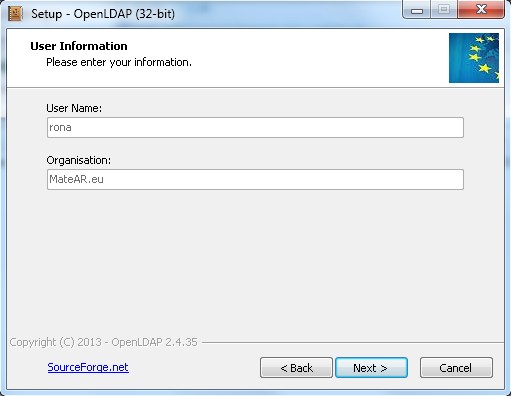
This screen prompts you to enter your details but does not allow data entry. Go figure. Ignore it and click 'Next'. There are no side effects.
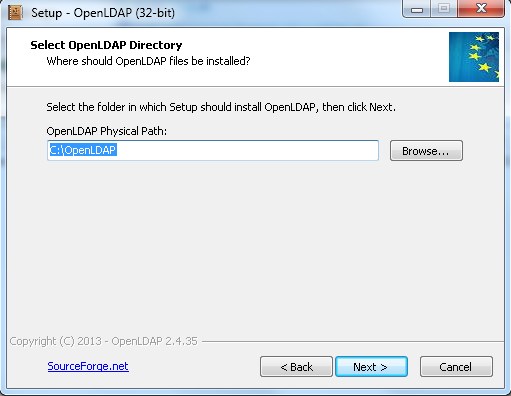
This screen shows the default installation directory, change to suit your needs or just click 'Next'.
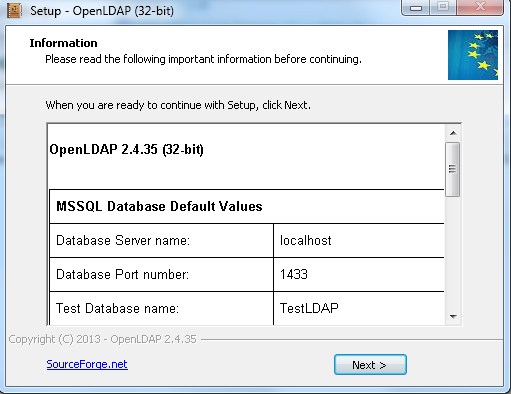
Once the files are installed this screen shows some basic information about the server configuration. Much of it is only useful if you are going to use the default configuration.
The screen following this one ask if you want to read the readme.pdf document. Our advice - don't. Uncheck the box and carry on reading these instructions.
When the last install wizard screen has been dismissed and faded into the night you have the following configuration (assumes you have installed to the default c:\OpenLDAP path, adjust as appropriate if you are one of those folks who hates to take defaults just because they are defaults):
The system is configured to use a slapd.conf file in \etc\openldap (there is no slapd.d directory - see notes here on olc/cn=config). This slapd.conf is perfectly serviceable and well worth looking at, in particular it uses relative paths to contain them within the installation directory. LDAP is supported on the standard port numbers (389 and 636 for ldaps). If you are going to use your own slad.conf file look at the standard location of any pidfile, argsfile (default \var\run) and logfile (default \var\log) statements and adjust for simplicity, similarly check the location of schema files (\etc\openldap\schema) and directory (\var\db\openldap-data) statements in your database section(s) (use and create new directories as appropriate).
One of the more confusing aspects of OpenLDAP installation these days is whether or not they are built statically or dynamically. OpenLDAP for Windows has built statically (smart) meaning that you do not need loadmodule or loadpath statements.
For your delight and edification we shown the default OpenLDAP for Windows slapd.conf file below:
#
# See slapd.conf(5) for details on configuration options.
# This file should NOT be world readable.
#
include		/schema/core.schema

# Define global ACLs to disable default read access.

# Do not enable referrals until AFTER you have a working directory
# service AND an understanding of referrals.
#referral	ldap://root.openldap.org

pidfile		/run/slapd.pid
argsfile	/run/slapd.args

# Load dynamic backend modules:
# modulepath
# moduleload	back_bdb.la
# moduleload	back_hdb.la
# moduleload	back_ldap.la

# Sample security restrictions
#	Require integrity protection (prevent hijacking)
#	Require 112-bit (3DES or better) encryption for updates
#	Require 63-bit encryption for simple bind
# security ssf=1 update_ssf=112 simple_bind=64

# Sample access control policy:
#	Root DSE: allow anyone to read it
#	Subschema (sub)entry DSE: allow anyone to read it
#	Other DSEs:
#		Allow self write access
#		Allow authenticated users read access
#		Allow anonymous users to authenticate
#	Directives needed to implement policy:
# access to dn.base="" by * read
# access to dn.base="cn=Subschema" by * read
# access to *
#	by self write
#	by users read
#	by anonymous auth
#
# if no access controls are present, the default policy
# allows anyone and everyone to read anything but restricts
# updates to rootdn.  (e.g., "access to * by * read")
#
# rootdn can always read and write EVERYTHING!

#######################################################################
# BDB database definitions
#######################################################################

database	bdb
suffix		"dc=my-domain,dc=com"
rootdn		"cn=Manager,dc=my-domain,dc=com"
# Cleartext passwords, especially for the rootdn, should
# be avoid.  See slappasswd(8) and slapd.conf(5) for details.
# Use of strong authentication encouraged.
rootpw		secret
# The database directory MUST exist prior to running slapd AND
# should only be accessible by the slapd and slap tools.
# Mode 700 recommended.
directory	/openldap-data
# Indices to maintain
index	objectClass	eq
To start the server you can either do it from Start->All Programs->OpenLDAP->Start LDAP Server as shown below:.
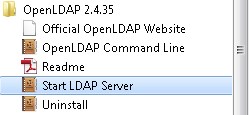
Note: OpenLDAP for windows uses an .exe for installation rather than a .msi file and therefore it can take up to 30 mins to appear on the All Programs menu.
If you are impatient, navigate to the libexec directory and double click the entry StartLDAP.cmd which immediately starts the LDAP Server.
Starting the server will open a dos box, generate buckets loads of information and remain open (you must explicity terminate OpenLDAP using CTL-C in this dos box window). If anything goes wrong the window will immediately close. If you are using a logfile (default slapd.conf uses \var\log\openldap.log) then inspect it for errors. If you are not using a logfile statement - tough luck.
The volume of traffic in the dos box window can seriously slow down the server. To reduce or eliminate the volume of data shown on the screen simply edit (notepad will do it) the file \libexec\StartLDAP.cmd and on the last line of this file remove the -d -1 arguments completely (to eliminate the traffic except catasrophic errors) or change the -1 so some other value (as defined here), for example, the value 8 will only show connection information. This file is shown in its full glory so you can figure out which is the last line.
@echo off

verify on

Rem SET HOME=

SET ODBCINI=..\etc\odbc.ini

SET ODBCSYSINI=..\etc

SET FREETDS=..\etc\freeTDS.conf

SET TDSVER=8.0

SET TDSDUMP=..\var\log\freetds.log

SET RANDFILE=..\bin\rfile.rnd

SET LDAPCONF=..\etc\openldap\ldap.conf

SET LDAPRC=..\bin\ldaprc


Rem Adjust accordingly

Rem SET KRB5_CONFIG=C:\Heimdal\etc\krb5-pkinit.conf

Rem SET KRB5_KTNAME=C:\Heimdal\etc\krb5.keytab

Rem SET KRB5CCNAME=FILE:C:/Heimdal/tmp/krb5cc_500

SET FQDN=localhost

slapd.exe -d -1 -h "ldap://%FQDN%/ ldaps://%FQDN%/" -f ..\etc\openldap\slapd.conf
The standard OpenLDAP ldap utilities (ldapsearch etc.) are located in the bin directory. OpenLDAP for windows conveniently provides a command line window pre-configured for this directory as shown below:
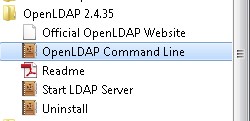
Alternatively open any dos box window and navigate to c:\openldap\bin or place this in your path (start->control panel->system->advanced system settings->advanced tab->environmental settings button->scroll down in the lower pane to the path variable and add ;c:\openldap\bin) Opening any dos box (Start->run->cmd) will allow you run the ldap utilities. Note: the slap utilities (slapadd etc.) are in the sbin directory so you may want to add ;c\openldap\sbin also to the path variable.
As previously mentioned, to terminate the OpenLDAP server select the dos window in which it is running and type CTRL-C, the server will stop and you will be offfered a prompt Terminate Batch Job?, typing y to this prompt will close the window.
If this procedure is not followed (for example you closed your PC without terminating the LDAP server) the server will probably subsequently refuse to start. If this is the case navigate to the directory c:\openldap\var\run and delete any files in this directory (slapd.args and slapd.pid). The server should now restart. Failing this look at the log file (default in \var\log). You do have a logfile directive, don't you?

Problems, comments, suggestions, corrections (including broken links) or something to add? Please take the time from a busy life to 'mail us' (at top of screen), the webmaster (below) or info-support at zytrax. You will have a warm inner glow for the rest of the day.



